

Find out more
MERiT reporting!
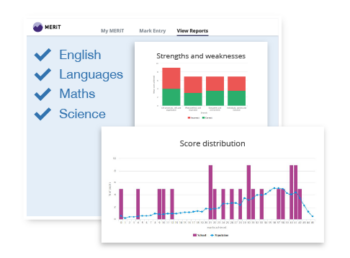
Make the most of your students’ AQA assessment data by entering their marks into MERiT to get our detailed reports and population analysis.
The Viewer – shareable links
Exampro weblinks are perfect for all independent tasks.
Share questions with your students easily without printing – just compile your document, save it in the online library then share the generated weblink*.
Watch this 2 minute video to see how to use the Exampro Viewer, and start sharing questions with your department and students.

How does Exampro benefit teachers?

Saves time
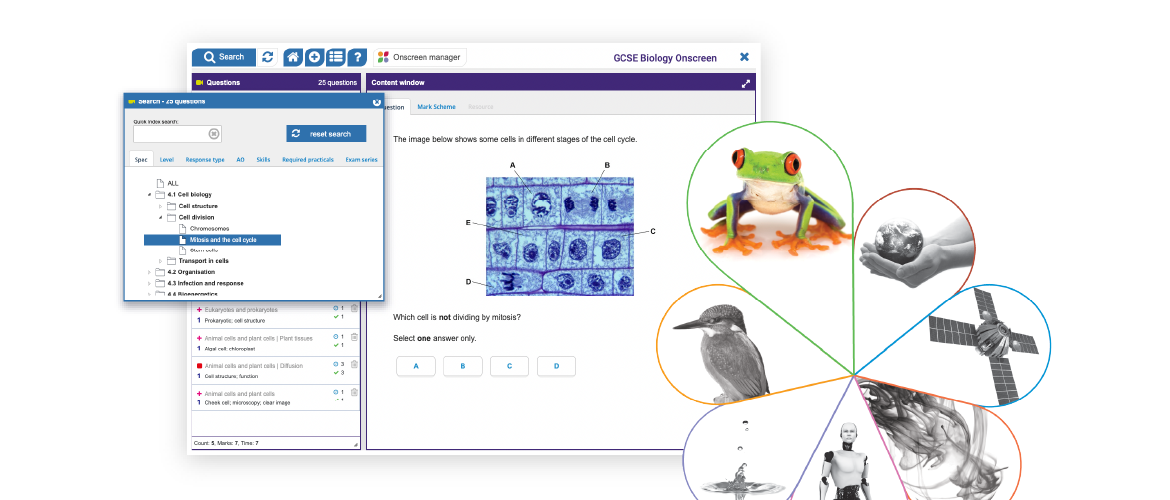
You decide which questions you need to create a short activity, whole lesson, topic test or independent task and Exampro allows you to make it in minutes!

Easy to use
Everything in one place. Search for questions by selecting from a range of criteria or entering a keyword or phrase. Share with students via the short URL, as a Word doc or PDF or via Google Drive.

What teachers are saying…
*These links can be shared by email or on a password-protected section of your school website. Please remind students that they must not share these links with anyone in other schools. Our Terms and Conditions state that documents made in Exampro must not be shared outside your centre.